CAP Tab
The CAP tab contains the following metrics:
- Total Open Items on the CAP—shows the total number of open items on the Corrective Action Plan, as well as the breakdown by At Risk, Not Scheduled, and Stalled statuses:
- At Risk—shows the number of items with a due date within 14 calendar days whose Percent Complete does not match the expected Percent Complete.
- Not Scheduled—shows the number of items that do not have a projected start date and projected completion date assigned.
- Stalled—shows the number of items that have been flagged as Stalled due to a lack of progress being made.
- Open Items Breakdown by Status—shows the total number of open items on the CAP divided by the current status (Identified, In progress, In review).
- Number Remediated for the Last 12 Months—shows the total number of items remediated in the previous 12 months, as well as the percentage of the total risks on the CAP that accounts for.
- Number Accepted—shows the number of risks on the CAP that are currently in an Accepted status.
- CAP Overview—shows the CAP items that have both a projected start date and a projected completion date in the form of a Gantt chart.
The CAP tab also displays the CAP Items table. This table includes all the items on the Corrective Action Plan that have not been remedied and is arranged by Severity by default. Depending on your assigned permissions you may not be able to see all the details of an item.
The information in the table is grouped into the following columns:
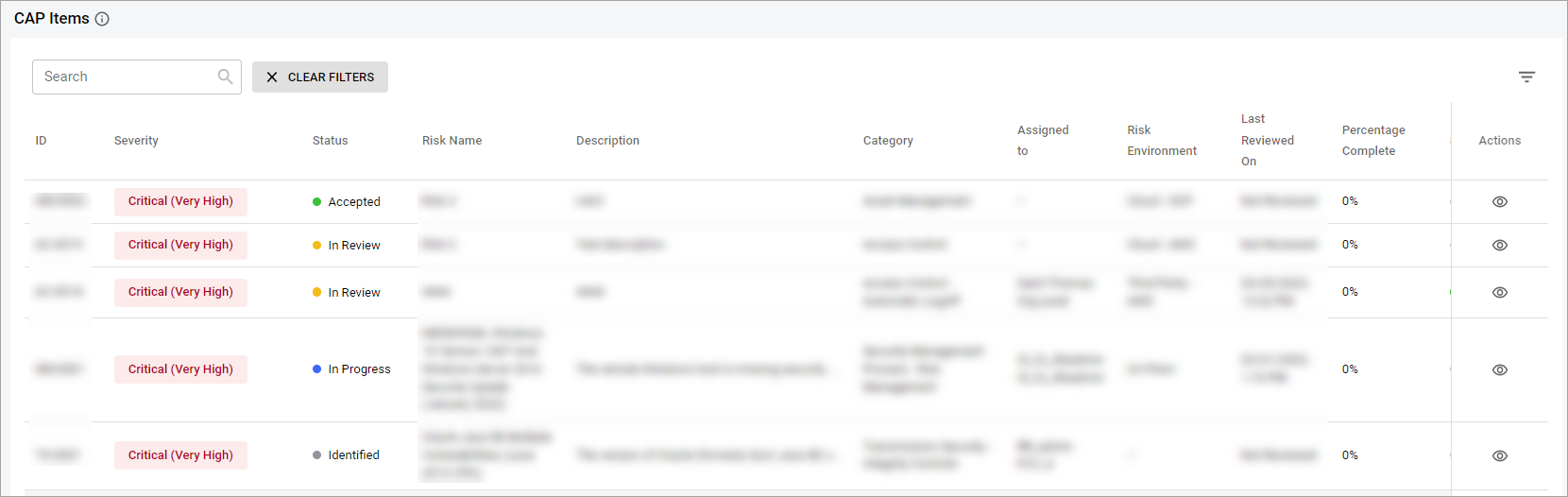
- ID—shows a unique identification number of the CAP item.
- Severity—shows a categorization of the CAP item.
- Status— shows a current status of the CAP item.
- Risk Name—shows the name of the CAP item.
- Description—shows the information that describes the CAP item.
- Category—shows the information about the category of the CAP item.
- Assigned to—shows a user who was assigned to work on the CAP item.
- Risk Environment—shows the environment where the CAP item was detected.
- Risk Likelihood—shows the likelihood of the risk (Critical (Very High), High, Medium (Moderate), Low, Informative (Very Low)).
- Risk Impact—shows the impact of the risk (Critical (Very High), High, Medium (Moderate), Low, Informative (Very Low)).
- Risk Treatment—shows the options for risk treatment (Avoid, Accept, Mitigate, Transfer).
- Last reviewed on—shows the date and time when the CAP item was last reviewed.
- Percentage Complete—shows the percentage of work completed with the CAP item.
- Stalled—shows whether the flag Stalled is enabled or disabled for the CAP item.
- Date Created—shows the date when the risk was created.
- Date Added to CAP—shows the date when the item was added to CAP.
- Actions—shows the available actions you can perform such as:
- View details—view the details of the CAP item (see the View Risk Details).
- Add CAP Call Notes—add a CAP Call Note to the CAP item.
- Note: You can add a CAP Call Note by selecting the CAP Item from the table and then selecting the Add CAP Call Notes button. It is not possible to add a note to a remediated item.
- Edit—edit the selected CAP item.
- Assign—assign the CAP item to a particular user.
- Reopen—reopen the remediated item that was added to CAP.
- Note: The information in all columns can be sorted by selecting the Arrow icon near a column name. To see the icon, hover over a column name.
Related Topics